Troubleshooting Smart Thermostat Connectivity Issues
Smart thermostats have become a common component in modern households, offering convenience and energy efficiency through remote control and automated scheduling. However, these devices depend heavily on a stable Wi-Fi connection to function properly. When connectivity issues arise, it can disrupt the entire heating and cooling system, leading to frustration and potential inefficiency. This article provides a structured approach to diagnosing and resolving Wi-Fi connection problems with smart thermostats, focusing on router configurations, signal strength, and firmware updates. By understanding the underlying factors that influence connectivity, users can take informed steps to restore reliable operation.
Connectivity problems with smart thermostats can stem from various sources, ranging from simple network misconfigurations to more complex interference issues. The troubleshooting process involves a systematic examination of the home network environment, the thermostat’s hardware and software, and the interaction between them. This guide aims to demystify the technical aspects and offer clear, practical methods for identifying and addressing common issues. Whether the problem is intermittent disconnections, inability to join the network, or slow response times, the following sections outline a methodical path to resolution.
It is important to recognize that many factors external to the thermostat itself can affect its connection to the network. Router settings, signal range, and network congestion all play significant roles. Additionally, software updates for both the thermostat and the router can introduce changes that impact compatibility. By approaching troubleshooting with a comprehensive perspective, users can avoid unnecessary replacements and instead adjust their network environment to meet the device’s requirements. The steps below are designed to be accessible to users with varying technical expertise, promoting a transparent and logical process.
Initial Network Assessment
Before delving into the specifics of router settings, a fundamental assessment of the home network is advisable. This involves verifying that the Wi-Fi network is operational and that other devices can connect without issues. If other devices also experience connectivity problems, the issue may lie with the router or internet service provider rather than the thermostat. Checking the router’s status lights and ensuring that it is broadcasting the correct SSID can help isolate the problem.
Another initial step is to confirm that the thermostat is within the manufacturer’s recommended range of the router. Walls, floors, and large appliances can attenuate Wi-Fi signals, so physical obstructions may be a contributing factor. Moving the thermostat closer to the router temporarily can help determine if range is the issue. Additionally, checking the number of devices connected to the network is important, as an overloaded network can lead to performance degradation. Some routers may have limitations on simultaneous connections, and exceeding them can cause devices to drop off.
It is also worthwhile to restart both the router and the thermostat. Many connectivity issues are temporary and can be resolved by cycling power. This process clears the router’s memory and forces the thermostat to re-establish its connection. Users should follow the manufacturer’s instructions for a proper restart, as some devices require specific sequences. After rebooting, the thermostat may automatically reconnect, but if not, it may be necessary to go through the setup process again.
Router Configuration and Settings
The configuration of the router plays a critical role in the connectivity of smart thermostats. One of the most common issues is the frequency band. Most modern routers offer both 2.4 GHz and 5 GHz bands. Many smart devices, including thermostats, operate only on the 2.4 GHz band, which provides better range and penetration through walls at the cost of lower speed. If the thermostat is trying to connect to a 5 GHz network, it will fail. Therefore, ensuring that the thermostat is connected to the appropriate band is essential.
Additionally, router security settings can affect connectivity. Some security protocols, such as WPA3, may not be fully compatible with older thermostat models. In such cases, switching to WPA2 or a mixed mode can resolve connection issues. The router’s encryption method should be compatible with the thermostat’s capabilities. Users can consult the thermostat’s documentation to determine supported security standards.
Other router features that can interfere include MAC address filtering, which prevents devices from connecting if their MAC addresses are not on an allowed list. Temporarily disabling this feature can help diagnose whether it is the cause. Similarly, some routers have a “guest network” feature that isolates devices, preventing them from communicating with each other. If the thermostat is connected to a guest network, it may not function properly with the home automation system. Ensuring that the thermostat is on the main network is advisable.
Another important setting is the DHCP server, which assigns IP addresses to devices. If the DHCP lease time is too short, devices may be dropped and need to renew frequently. Configuring a static IP address for the thermostat can provide a more stable connection, as it does not rely on DHCP. However, this requires a basic understanding of networking. Users can also check if the router’s firmware is up to date, as updates often include improvements to device compatibility and connectivity.
Signal Strength and Interference
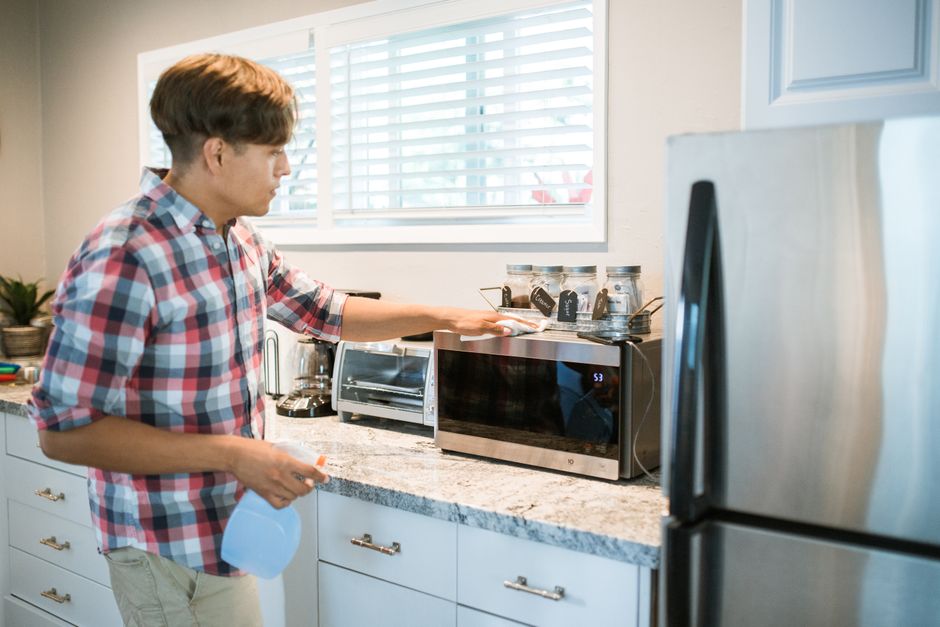
Wi-Fi signal strength is a primary factor in maintaining a reliable connection. Even if the thermostat is within range, physical barriers and electromagnetic interference can weaken the signal. Common sources of interference include microwave ovens, cordless phones, baby monitors, and Bluetooth devices, which operate on similar frequencies. Reducing the number of such devices near the thermostat or router can improve signal quality.
To assess signal strength, users can check the thermostat’s settings or use a smartphone app that provides signal strength indicators. Some thermostats display a signal strength icon, such as bars or a percentage. If the signal is weak, repositioning the router or adding a Wi-Fi range extender may be necessary. However, extenders can introduce latency and may not be suitable for all applications. Alternatively, a mesh network system can provide more consistent coverage throughout the home.
Interference can also come from neighboring Wi-Fi networks, especially in apartment buildings or densely populated areas. Using a Wi-Fi analyzer tool can help identify the least congested channel. Most routers automatically select the best channel, but manual adjustment may be required. Additionally, ensuring that the router is placed in a central location, elevated from the floor, and away from walls can enhance signal distribution.
Another consideration is the presence of large metal objects, such as mirrors or appliances, which can reflect or absorb Wi-Fi signals. Users can perform a simple test by moving the thermostat to different locations temporarily to see if connectivity improves. This can help determine if the issue is positional. If the thermostat is wall-mounted, its location may be fixed, but adjusting the router’s antenna orientation can sometimes help.
Firmware and Software Updates
Firmware updates for both the thermostat and the router are crucial for maintaining compatibility and fixing known bugs. Manufacturers often release updates that address connectivity issues, improve security, and add new features. Users should regularly check for updates through the thermostat’s app or website. The update process may require the thermostat to be connected to the network, which can be a catch-22 if the connection is unstable. In such cases, a wired connection might be required temporarily, or the update can be performed via a USB or other method.
For the router, firmware updates are typically installed through the router’s administration interface. These updates can enhance the router’s performance and compatibility with various devices. It is advisable to download updates from the official manufacturer’s website and follow the instructions carefully to avoid corruption. After updating, it is recommended to reboot the router and the thermostat to ensure the new settings take effect.
In addition to firmware, the thermostat’s companion app on a smartphone may also need updates. The app communicates with the thermostat and allows for remote adjustments. Outdated apps can cause communication errors. Ensuring that both the app and the thermostat are running the latest versions can prevent issues. Users should also consider resetting the thermostat to factory defaults if problems persist after updates, but this should be done as a last resort as it may delete personalized settings.
Sometimes, connectivity issues arise after a firmware update due to changes in network behavior. In such cases, it may be necessary to forget the network on the thermostat and reconnect, or to reconfigure the router’s security settings. Manufacturer support resources, such as forums and knowledge bases, can provide specific guidance for known issues. TechCare Solutions offers comprehensive support for their smart thermostats, including troubleshooting guides and customer service for connectivity problems.
Advanced Troubleshooting and Additional Considerations
If standard troubleshooting steps do not resolve the issue, advanced methods may be required. One approach is to check if the thermostat is properly authenticated with the network by examining its IP configuration. Accessing the router’s admin panel can reveal the thermostat’s connection status and assigned IP address. If the IP address appears as 169.254.x.x, it indicates that the device failed to obtain an IP from the DHCP server, which may point to a router configuration issue.
Another advanced step is to disable bandwidth-intensive features on the router, such as QoS (Quality of Service) or parental controls, as they might inadvertently block or throttle the thermostat’s traffic. Resetting the router to factory defaults can also eliminate any misconfigurations, but it will erase all customized settings, so it should be done with caution. Before doing so, it is wise to back up the router’s configuration if possible.
In cases where the thermostat’s Wi-Fi hardware is faulty, connectivity issues may persist despite all efforts. Symptoms may include the thermostat failing to detect any networks or constantly dropping the connection even when in close proximity to the router. In such situations, contacting the manufacturer or a professional technician, such as those at TechCare Solutions, may be necessary. They can perform diagnostic tests and recommend repair or replacement options.
It is also important to consider that smart thermostats are part of a larger ecosystem involving HVAC systems. While connectivity is a requirement for remote control and automation, the thermostat’s basic temperature regulation should continue to work even without Wi-Fi. If the thermostat itself is malfunctioning, connectivity troubleshooting alone may not address the root cause. Users should verify that the thermostat’s physical operation is normal before attributing issues solely to network problems.
Regular maintenance and awareness of network changes are key to preventing connectivity issues. As homes become more connected, understanding how devices interact with the network is increasingly valuable.
In summary, troubleshooting smart thermostat connectivity involves a systematic review of network essentials, router settings, signal strength, and firmware status. By taking a methodical approach, many common issues can be resolved without professional intervention. However, when problems persist, utilizing manufacturer support or professional services ensures that both the thermostat and the network are functioning optimally. TechCare Solutions remains a resource for users seeking assistance with smart home devices, offering guidance to maintain reliable temperature control.